vibe transcription save as pdf
How to Save a Vibe Transcription as PDF
To save a Vibe transcription as PDF, finish the transcript, review important names and numbers, choose PDF from the export menu, and confirm the file name and destination in the system save dialog. This guide explains the reliable path, what to keep as a working copy, and what to check if the PDF option or saved file is missing.
Quick answer: choose PDF from the export menu
Vibe separates the transcript draft from the document you export. A transcript can be visible in the editor without a PDF on disk. Finish the review first, select PDF in the export control, then verify the saved file outside Vibe before closing the project.
Review the transcript before turning it into a fixed PDF copy.
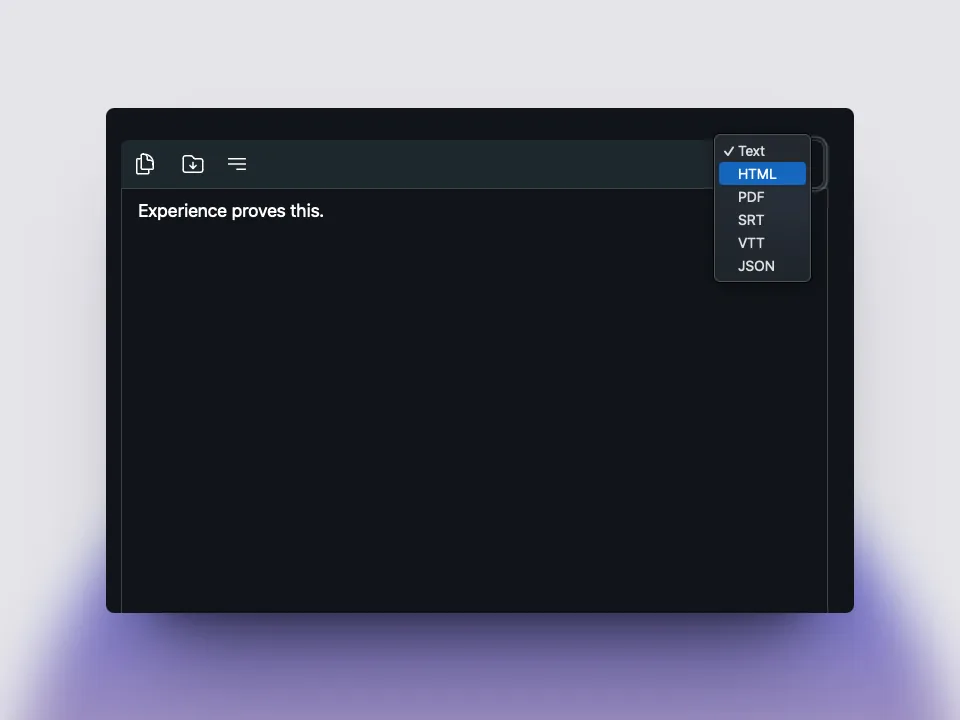
Choose PDF instead of SRT or VTT when you need a document rather than timed captions.
Confirm the destination and open the saved file so the export is easy to find later.
Save a Vibe transcription as PDF
- Open the completed transcript and correct names, dates, numbers, and obvious speaker labels.
- Open the transcript export or Save Transcript control above the editor.
- Select PDF from the available document formats.
- Choose a clear filename and a project folder in the system save dialog.
- Save the file, open it in a PDF viewer, and keep the original media and editable transcript nearby.
Choose PDF or another export format
The best format depends on what the next person needs to do with the transcript. PDF is useful as a fixed, shareable copy, but it is not the easiest format for later editing.
| Format | Best for | What to remember |
|---|---|---|
| A fixed reading or review copy | Check page breaks, names, and the final filename | |
| TXT or DOCX | Editing, notes, and corrections | Keep this editable copy before publishing a PDF |
| SRT or VTT | Timed captions and subtitle work | Time blocks are expected and are not a clean document |
| JSON or CSV | Structured processing and downstream workflows | Use when another tool needs fields rather than pages |
Exact export labels can change between Vibe releases. Use the options shown by the installed official version and verify the resulting file.
Open and review the finished transcript first
A PDF is a presentation copy, so it should be created after the transcript has been checked. Listen again to names, dates, prices, addresses, quotations, technical terms, and places where speakers overlap. If a word is uncertain, mark it for review instead of making the PDF look more final than the evidence allows.
Keep the source audio or video unchanged and treat the transcript in Vibe as an editable working draft. This makes it possible to correct the text and export a new PDF without losing the original record. A PDF saved too early can preserve mistakes that would have been easy to fix in the editor.
- Compare important passages with the recording.
- Keep the source media and editable transcript under clear project names.
- Do not use PDF export as a substitute for editorial review.
Choose PDF in Vibe's export menu
When the transcript is ready, open the export control or the download-shaped Save Transcript button above the editor. The format list can include document and subtitle choices. Select PDF when the reader needs a page-based copy rather than a file that stays synchronized with audio or video.
PDF is a good fit for a review packet, archive copy, handoff, or print-ready draft. It is less convenient for substantial text changes, so save TXT or DOCX as well when another person may need to edit wording, headings, or speaker labels.
- Use PDF for a fixed reading, review, or sharing copy.
- Use TXT or DOCX when the next step is editing.
- Use SRT or VTT only when timing and captions are the actual requirement.
Confirm the filename and destination
After selecting PDF, use a filename that identifies the source, review state, and date when that context matters. A name such as interview-2026-08-16-reviewed.pdf is easier to find than a generic export name, but keep the project naming convention consistent with the rest of your files.
The final folder is the destination you approve in the operating-system save dialog. It may be Downloads, Documents, a project folder, a synced drive, or another location. Do not assume that the installer folder or model folder is the transcript folder. After saving, open the PDF and confirm that it is readable.
- Check the extension is .pdf before closing the dialog.
- Use a known project folder when you need the file again.
- Open the saved PDF instead of relying only on a success notification.
If the PDF option or file is missing
First check whether the transcript is complete and whether you are looking at the export menu rather than the player controls. If PDF is not listed, use the formats exposed by the current official installation and keep an editable text export. Do not claim that a hidden or unavailable control exists in every release; Vibe's interface and supported formats can change.
If you selected PDF but cannot find the result, search for the filename and check the folder shown in the save dialog. Also check synced folders, external drives, and whether the PDF viewer can open the file. If the file is empty or cut off, repeat the test with a short transcript and compare the result before processing the full recording again.
- Confirm the transcript finished before exporting.
- Search the approved destination and the exact filename.
- Test a short sample if the PDF is empty, incomplete, or hard to open.
Keep an editable copy beside the PDF
PDF is useful because its pages are stable for reading and review, but it is not the best master for corrections. Keep TXT, DOCX, Markdown, or another editable export beside the PDF when the transcript may be revised. If subtitles are also needed, preserve an SRT or VTT copy with its timing information instead of rebuilding it from a printed page.
Record the Vibe version and the export date when the transcript is part of a repeatable workflow. This guide was checked against the official Vibe v3.2.2 release published on September 5, 2026. Check the current official release when the installed interface differs or when a format option changes.
- Use a clear suffix such as reviewed, draft, or final only when it matches your process.
- Keep the original media and editable transcript with the PDF.
- Verify the current official release before documenting a changed control.
Official sources checked
FAQ
Questions about saving Vibe transcripts as PDF
How do I save a Vibe transcription as PDF?
Finish and review the transcript, open the export or Save Transcript control, choose PDF, confirm the filename and destination, then open the saved file in a PDF viewer. Keep an editable copy when more corrections may be needed.
Does Vibe export PDF files?
The verified Vibe workflow and current project media show PDF among the available export choices. Use the options exposed by your installed official release because labels and supported formats can change.
Where is the Vibe PDF saved?
It is saved in the folder you approve in the operating-system save dialog. Check that destination and the filename rather than assuming the file is always in Downloads or Documents.
Can I save a Vibe transcript without timestamps as PDF?
PDF is a document format rather than SRT or VTT subtitle output, but review the exported pages. If you need clean text for editing, keep TXT or DOCX as the editable source and use the PDF as the fixed copy.
What should I do if the PDF is missing or incomplete?
Check that transcription finished, confirm the save destination, search the exact filename, and test a short transcript. If the current release does not show PDF, use an available editable format and verify the official release notes before changing the workflow.
offline transcription with vibe
download vibe and start with a short local transcription test.
Download Vibe