how to get vibe to transcribe without timestamps
How to Get Vibe to Transcribe Without Timestamps
To get a clean Vibe transcript without timestamps, transcribe your file normally and export it as plain text, DOCX, Markdown, HTML, or another document format. SRT and VTT are timed subtitle formats, so they intentionally keep timestamp blocks. This guide shows which format to choose, what to check when times still appear, and when it is safer to keep both a timed and clean copy.
Short answer: export a text format
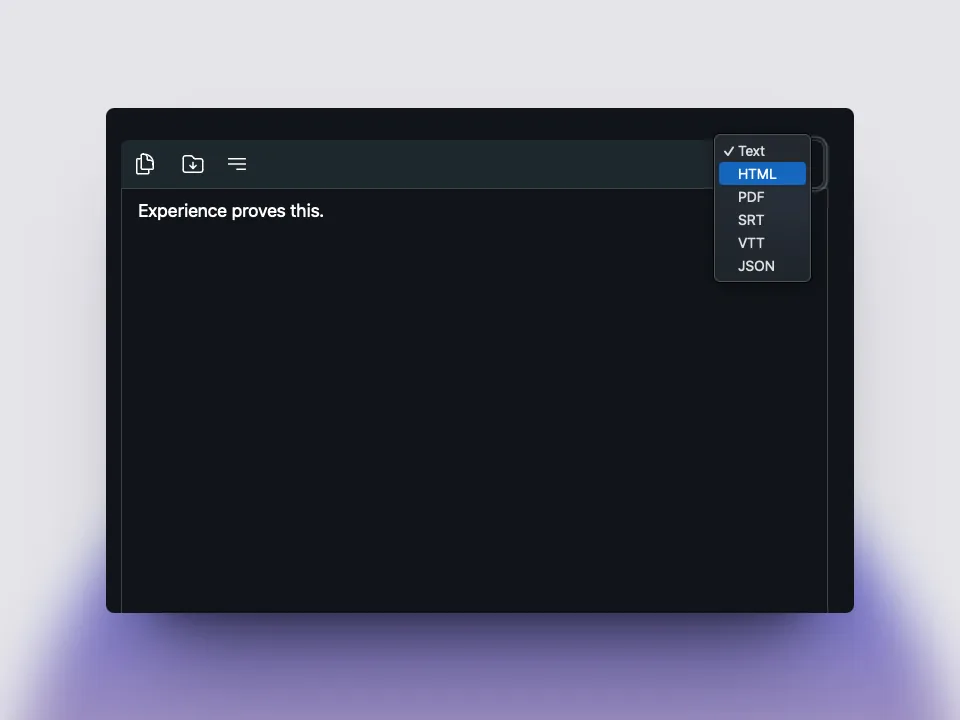
Vibe separates the transcript draft from the file format you save. If the result contains time ranges, open the export control and choose Text, DOCX, Markdown, HTML, or PDF instead of SRT or VTT. Keep the timed version only when you need captions, quotation lookup, or speaker timing.
Use TXT, DOCX, Markdown, or HTML when the reader needs clean paragraphs.
Use SRT or VTT when the file must stay synchronized with a video or audio track.
Review the exported file itself; the editor can show playback time even when the saved text is clean.
Keep a timed master copy when you may need captions or evidence checks later.
Export a clean Vibe transcript
- Open the completed transcript and correct obvious names, numbers, and speaker labels.
- Open the transcript export or Save Transcript control.
- Choose Text, DOCX, Markdown, HTML, or PDF for a document without subtitle time blocks.
- Save to a named project folder and confirm the filename and extension.
- Open the saved file in a text editor or document app and check the first few paragraphs.
- Keep an SRT or VTT copy only when timing is part of the next step.
What without timestamps means in Vibe
A timestamp is not a separate speech-recognition result. It is timing information added to the transcript or export. Subtitle formats such as SRT and VTT are designed to tell a player when each line should appear, so they contain time ranges by design.
A clean reading copy has paragraphs or speaker lines without subtitle blocks. That makes TXT, DOCX, Markdown, and HTML better choices for notes, research, editing, and long-form reading. The Vibe editor may still show a playback position while you review the audio; that does not prove the saved document contains timestamps.
- Timed output: SRT or VTT for captions.
- Clean reading output: TXT, DOCX, Markdown, or HTML.
- Structured output: JSON or CSV when another workflow needs fields or timing.
Step-by-step: save a clean transcript
Start with the finished transcript in Vibe and review a representative section. Fix names, numbers, technical terms, and speaker labels before exporting. A clean file is easier to read, but it should not hide uncertainty in the recognition draft.
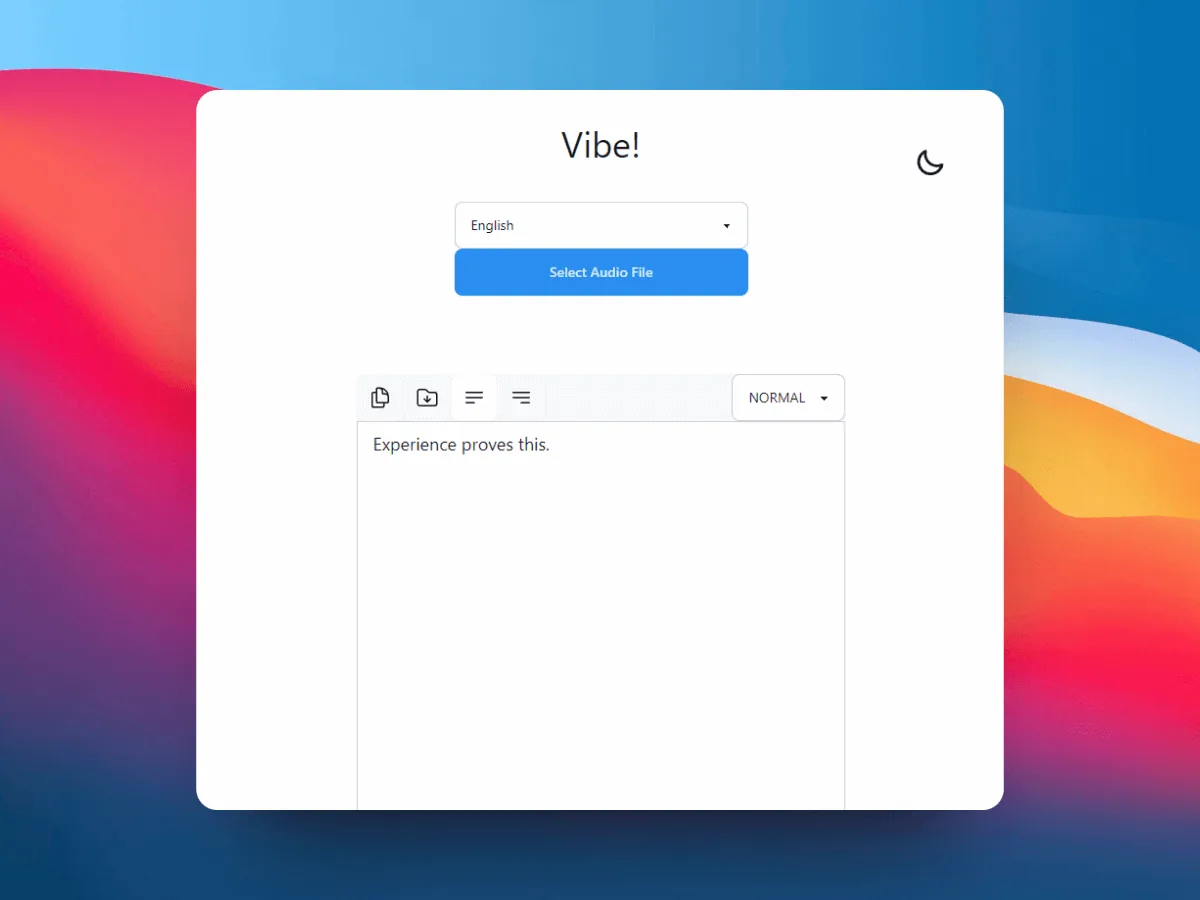
Use the download-shaped Save Transcript control or the export menu above the editor. Select a document format, approve the destination in the system save dialog, and then open the result outside Vibe. Checking the actual file prevents confusion between the editor timeline and the exported text.
- Check the extension after saving.
- Open the file instead of relying only on the success message.
- Keep the source recording beside the reviewed transcript.
Choose the right export format
Choose TXT when you want the simplest clean text. DOCX is useful for editing and sharing with people who work in a word processor. Markdown or HTML can preserve a lightweight publishing structure. PDF is convenient for a fixed copy, but it is less flexible for later corrections.
Choose SRT or VTT when timing matters more than a clean reading layout. They are appropriate for subtitles, caption review, and video editing. If you are unsure, save both: one timed master for verification and one clean document for reading.
- TXT/DOCX: reading, editing, and interview notes.
- Markdown/HTML: publishing or structured editorial work.
- SRT/VTT: subtitles and time-aligned captions.
- JSON/CSV: downstream data processing.
If timestamps are still visible
First, check the file extension and open the saved copy in a plain text editor. If it is SRT or VTT, the time blocks are expected. Export again as Text, DOCX, Markdown, or HTML rather than trying to delete every line by hand.
If a document format still contains timing, inspect the current Vibe release settings and test a short clip. Some interface options can change between releases. Do not describe a control as universal when the installed build does not show it; use the output format as the dependable fallback and record the version used.
- Do not confuse the audio player clock with text-file timestamps.
- Do not overwrite the only copy while cleaning a transcript.
- Compare the exported file with the original recording when timing or quotes matter.
Keep both versions when timing may matter later
A clean transcript is ideal for reading, search, summaries, and copy editing. A timed SRT or VTT file is better for finding a quote in a video, creating captions, or checking a speaker turn against the source. The two files serve different jobs and do not need to compete.
Use a clear project folder with the source media, the reviewed clean transcript, and the timed master. This guide was checked against the official Vibe v3.2.2 release published on September 5, 2026; confirm the current GitHub release if the installed interface changes.
- Keep the original audio or video unchanged.
- Name clean and timed files differently.
- Record the Vibe version when the workflow must be repeatable.
Official sources checked
FAQ
Vibe transcript timestamp questions
How do I get Vibe to transcribe without timestamps?
Export the reviewed transcript as Text, DOCX, Markdown, HTML, or another document format. SRT and VTT are timed subtitle formats and intentionally include time ranges.
Why does my Vibe transcript still show timestamps?
Check whether you saved SRT or VTT and whether you are looking at the editor timeline rather than the exported file. Try a clean document format and open the saved copy in a text editor.
Should I use TXT or SRT?
Use TXT for a clean reading copy and SRT for captions or time-aligned video work. Keep both when you need reading and timing later.
Can I remove timestamps from an existing SRT file?
You can create a clean export from Vibe or make a separate edited copy, but preserve the original SRT when the timing is useful. Do not overwrite your only source.
Does turning off timestamps change transcription accuracy?
The output format changes how timing is displayed or saved; it does not make the speech model more accurate. Review names, numbers, and unclear passages against the recording.
offline transcription with vibe
download vibe and start with a short local transcription test.
Download Vibe