vibe audio to text
Vibe Audio to Text: Local Transcription Guide
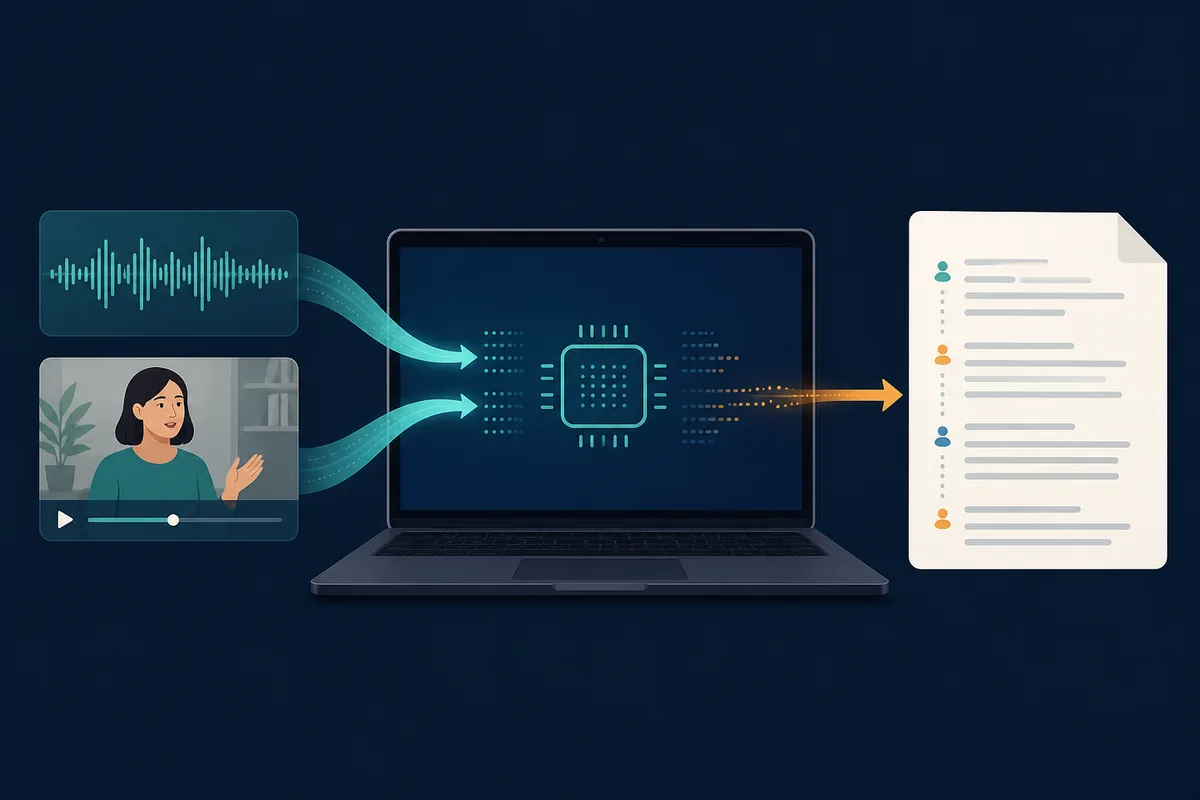
Vibe audio to text turns a local recording into a reviewable text draft on your computer. Use this guide to choose a short test file, select the spoken language and model, review timestamps, and export only after checking names and numbers.
Quick answer: Vibe audio to text is a local desktop workflow
Install Vibe from the official release, open a local recording, choose the language and model, run a short sample, then review and export. It suits interview audio, voice notes, lectures, and podcasts, but the draft still needs human checking.
Start with the official Vibe download and keep the original recording unchanged.
Test two to five minutes before processing a long file so you can catch model, language, or audio problems early.
Choose clean text or timestamped output according to the next step: reading, editing, captions, or research.
Review names, numbers, speaker changes, and uncertain words before publishing or sharing.
How to use Vibe audio to text
- Open a short local audio file that plays normally and identify the spoken language.
- Choose a model your computer can run comfortably, then start a short representative test.
- Compare the draft with the recording, checking names, numbers, pauses, and speaker changes.
- Export the format needed for notes, editing, captions, or later review, and keep the original beside the draft.
Prepare the recording before Vibe audio to text
A short, representative sample is more useful than starting with a three-hour recording. Play the file in a trusted local player, confirm that speech is audible, and keep the original file separate from any converted or trimmed test copy.
If the recording contains names, numbers, accents, background noise, or more than one speaker, include those conditions in the sample. That makes it easier to decide whether the language, model, microphone source, or room sound is the main limitation.
- Keep the original recording unchanged.
- Test a clear section and a difficult section when both matter.
- Write down the language and the main terms that need review.
Choose language, model, and timestamps
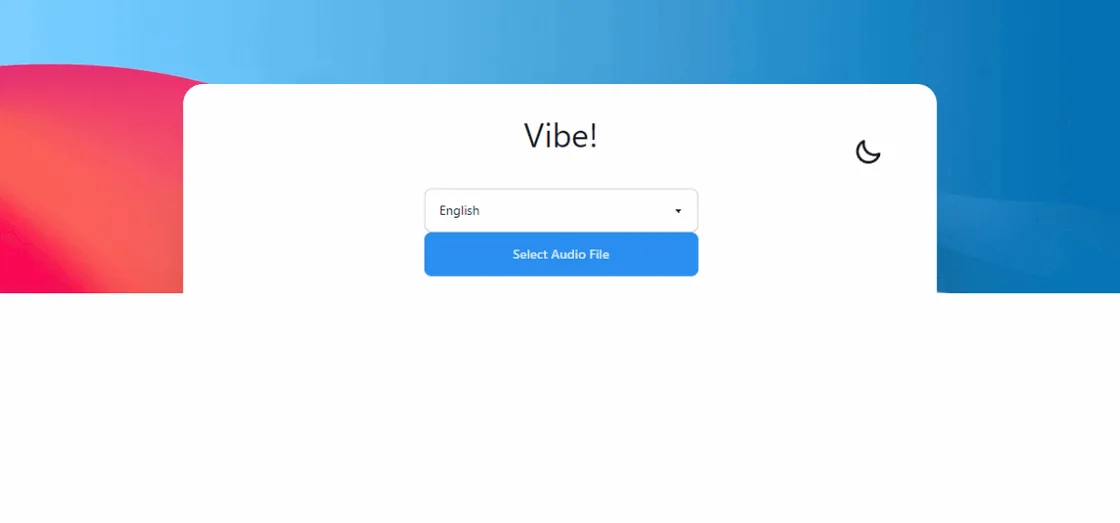
The spoken language should match the recording rather than the computer interface. A model that is too small for the audio conditions may be fast but less reliable with names, accents, or overlapping speech; a larger model may require more time and memory.
Timestamps are useful when the transcript will become captions, an interview index, or a time-coded research record. For simple reading and editing, a clean text export can be easier to review. Keep the choice visible in your notes so another person can repeat the workflow.
- Match the language to the recording.
- Use a short sample to compare speed and accuracy.
- Choose timestamped output when the next task depends on timing.
Review and export the transcript
A completed job is not automatically a publication-ready transcript. Read the first, middle, and last parts of a long file, then spot-check proper names, dates, amounts, quotations, and places where speakers overlap. Mark uncertainty instead of silently guessing.
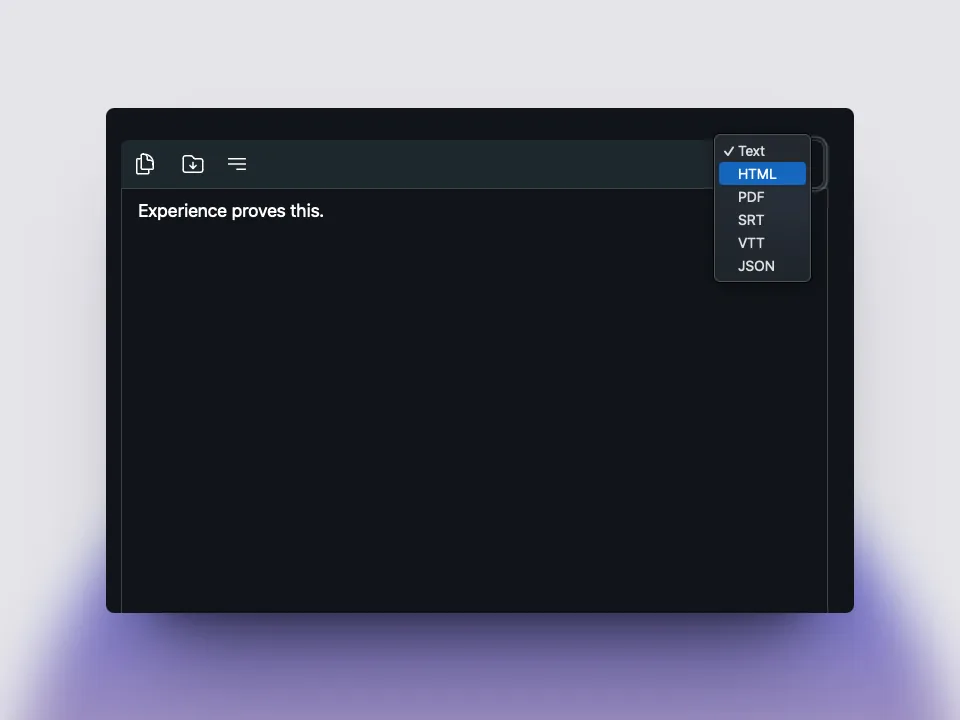
Export a format that matches the next tool or reader. Plain text is convenient for searching, document formats help editorial review, and subtitle formats preserve timing. Keep the source recording, the exported draft, and the Vibe version together when the result needs to be audited later.
- Compare the draft against the original audio.
- Keep timestamps when captions or verification need them.
- Do not describe automatic speaker labels as confirmed identities.
- Save the reviewed export separately from the raw draft.
Official sources
Vibe audio to text FAQ
Questions about Vibe audio to text
How do I use Vibe audio to text?
Open a local recording in Vibe, choose the spoken language and a suitable model, run a short test, review the draft against the audio, and export the format you need.
Is Vibe audio to text offline?
The core transcription workflow is designed to run on the desktop after the application and required models are available. Downloads, updates, and optional network features are separate from the local transcription step.
What should I do with a long recording?
Test a representative two-to-five-minute section first, check memory and processing behavior, then run the full file while keeping the original recording unchanged.
Does Vibe audio to text include timestamps?
Timestamp behavior depends on the selected workflow and export. Keep timestamps when you need captions, time-coded research, or verification; use clean text when timing is not part of the next task.
How accurate is Vibe audio to text?
Accuracy depends on recording quality, language, accents, background noise, overlapping speakers, model choice, and names or numbers in the audio. Review important passages before sharing the result.
offline transcription with vibe
download vibe and start with a short local transcription test.
Download Vibe