vibe transcription not working
Vibe Transcription Not Working? Fix Common Problems
If Vibe transcription is not working, start with a short, known-good audio file instead of changing every setting at once. This guide separates file, model, language, permission, export, and version problems so you can find the next useful check quickly.
Start with a short, known-good test
The fastest way to troubleshoot Vibe is to reproduce the problem with a two- or three-minute local file that plays normally. Note the Vibe version, operating system, language, model, and exact stage where the job stops. That small record prevents a long recording, a damaged file, or a network-only feature from hiding the real cause.
Play the same audio or video in a trusted local player before blaming the transcription model.
Test the spoken language, model, file length, and timestamp settings with one variable at a time.
Keep the original recording, exported draft, version number, and exact error message together while testing.
Five-minute troubleshooting path
- Confirm that the file opens and plays from a local folder, then make a short working copy.
- Choose the language actually spoken in the recording and use a model your computer can run comfortably.
- Run a two- or three-minute sample before processing the full interview, lecture, or video.
- Check whether the result is empty, stuck, incorrectly timed, or simply saved in a different export format.
- Record the version, platform, model, file format, and reproducible steps before reinstalling or opening an issue.
Match the symptom to the next check
Different symptoms point to different boundaries. Use this table to choose the smallest useful test before changing the whole workflow.
| Symptom | First check | Likely boundary | Next guide or action |
|---|---|---|---|
| The app opens but no file is accepted | Play the file locally and check the copy and extension | Path, format, codec, or file permission | Test the audio to text workflow with a short supported file |
| Transcription starts and then stops | Try a two-minute sample with a smaller model | Model memory, file length, or system resources | Review the Vibe transcription and model guidance |
| Text appears but the timing is wrong | Check whether the export is SRT/VTT or clean text | Timestamp and subtitle format settings | Use the without-timestamps guide when you need readable text |
| The job finishes but the result is missing | Search the selected export folder and open the file extension | Save location or output format | Check where Vibe saves transcripts before rerunning |
| A download or model step fails | Verify network access and the official release version | Optional network step rather than core local transcription | Use the official download page and record the version |
Feature names, model availability, and file-format support can change between releases. Treat the current Vibe installation and official project as the source of truth for exact controls.
Check whether the problem is the file or Vibe
When Vibe transcription is not working, first remove the application from the list of suspects. Open the same audio or video in a reliable local player and listen to a clear section. Confirm that the file is complete, that the working copy is stored in a folder you can read, and that the extension matches what the file actually contains. A WAV filename does not by itself prove that the stream is standard PCM, and a video can contain a silent or unusual audio track.
If the file plays normally, create a short two- or three-minute sample that contains ordinary speech. Do not begin with a three-hour interview or a heavily compressed export. A short sample makes it easier to tell whether the issue is file compatibility, a model that cannot load, a language mismatch, or a resource limit. Keep the original untouched so you can compare later.
- Use a local file rather than a temporary browser download while testing.
- Check that the file has non-silent speech and plays from start to finish.
- Keep the original and the short working copy under different names.
- Do not rename an extension and assume that the internal codec changed.
If Vibe opens but transcription never starts
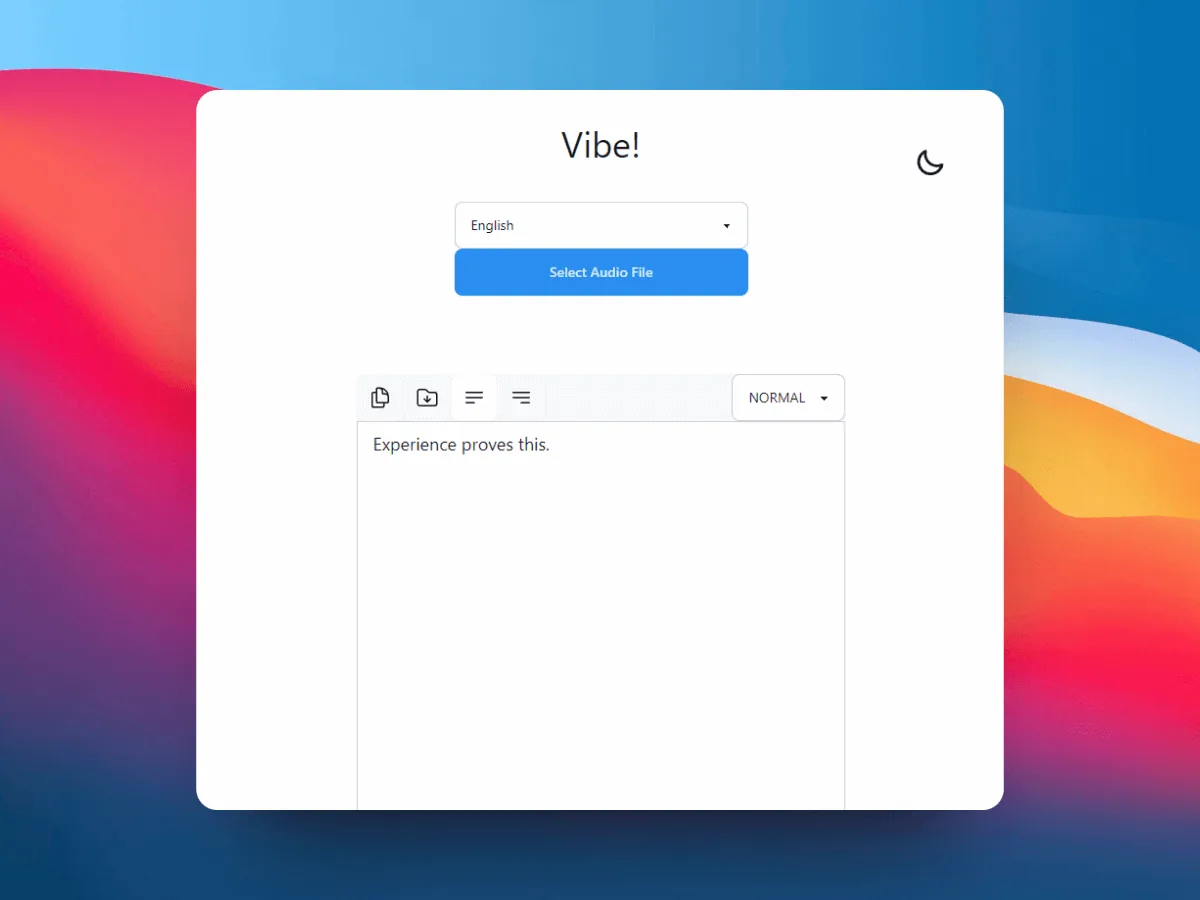
If the app opens but the Transcribe action does nothing, check the basic inputs in order. Make sure a file is selected, the spoken language is correct, and a model is available to the installation. A model download or first-run setup may need network access even when the central transcription step can run locally afterward. Separate that setup stage from the transcription stage when describing the problem.
Next, quit and reopen the app, then try the short sample from a simple local path. Avoid changing the file, language, model, and export format simultaneously. If the short sample works but the original does not, the original file length, codec, channel layout, or available memory is more likely to be relevant than the button itself.
- Confirm a model is present and compatible with the current installation.
- Use the language spoken in the recording, not the language of the file name.
- Test from a local folder with a short sample and a simple filename.
- Record whether the problem happens before processing, during processing, or during export.
If transcription starts but stays empty or stops at 0%
A blank result or a progress bar that stays at 0% usually needs a smaller reproduction case. Try a clear two-minute clip with one speaker, then compare it with the longer recording. If the short file works, process a few additional minutes and watch memory, disk space, and processing time. Long videos, noisy audio, overlapping voices, and a model that is too large for the computer can all make a healthy job look frozen.
Do not treat an empty result as proof that Vibe has deleted the recording or that the model is inaccurate. Check the log or visible error text, verify that the output folder is writable, and inspect the chosen export format. If the text exists but is hard to find, the problem may be the save location rather than transcription itself.
- Compare a one-speaker sample with the original multi-speaker recording.
- Check memory, free disk space, and whether the model is still loading.
- Wait for a short sample to finish before judging a long file as stuck.
- Look for an exported file before running the same job repeatedly.
Review language, model, timestamps, and long files
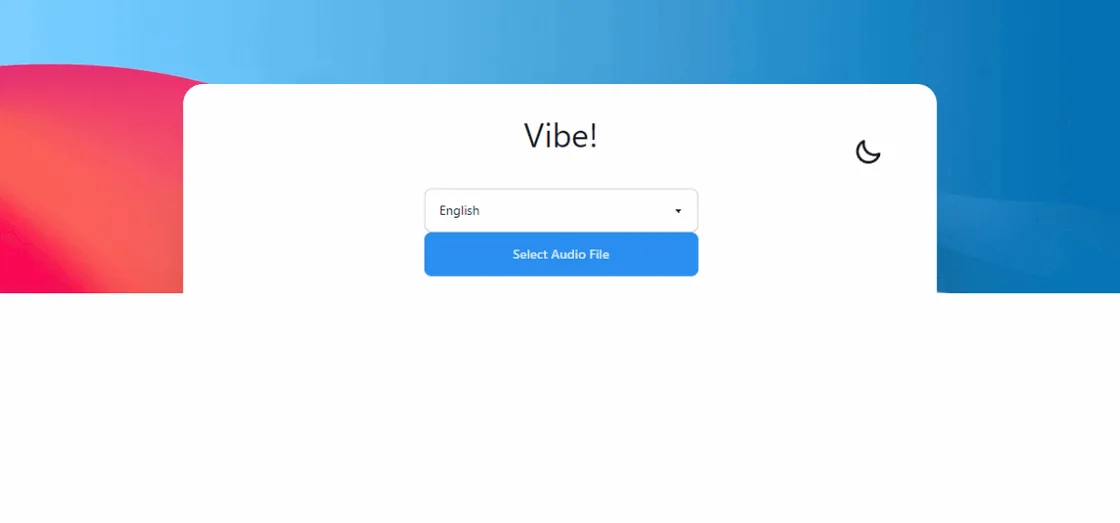
The wrong language can make a working model look broken. Choose the language actually spoken and repeat the same short clip. For interviews and meetings, enable speaker separation only when you need it and review the labels against the audio. For subtitles, keep timestamps and export a format designed for timing. For reading, editing, or notes, choose a clean text or document format instead of deleting time ranges by hand.
A large model may help with difficult audio, but it also needs more memory and time. Start with a model your computer can run reliably, then compare a larger model on the same short sample if accuracy requires it. For a long video, verify one representative section before processing the complete file. Keep the original and note the version, language, model, and export format so the result can be reproduced.
- Use the real spoken language and test a representative passage.
- Choose speaker separation only when speaker turns matter.
- Use SRT/VTT for timed captions and a document format for clean reading text.
- Compare models on the same sample instead of comparing different recordings.
Separate local transcription from network and permissions
Vibe is designed around local transcription, but not every action is offline. Downloading the application, downloading model files, checking releases, importing a URL, or using an optional external AI integration can involve the network. If the failure happens during one of those steps, diagnose the connection, source URL, firewall, or service boundary instead of describing the core local transcription as unavailable.
On the desktop, check that Vibe can read the input folder and write to the output folder. Operating-system permissions, protected directories, removable drives, and security software can block a file even when the application itself opens. Use a simple local test folder, avoid confidential files while diagnosing, and restore your preferred privacy controls after the test.
- Distinguish model or release downloads from local speech-to-text processing.
- Test from a folder with clear read and write access.
- Review firewall, security, microphone, and file permissions only when the symptom points there.
- Do not send sensitive recordings to a third-party service just to bypass an unclear local error.
Update, reinstall, and report reproducibly
Before reinstalling, record the current Vibe version, operating system, package type, model, file format, language, and the smallest file that still fails. Check the official release page for a newer build and compare the package name with your platform. Reinstalling can remove a damaged installation, but it cannot fix an unsupported codec, a missing permission, a wrong language, or a file that is already silent.
If the short test still fails after these checks, open the official project issue tracker with a concise reproduction. Describe what you selected, what happened, what you expected, and whether the problem affects a short known-good file. Avoid uploading private recordings. A clear version and step list is more useful than a screenshot without context.
- Check the official release before downloading a replacement installer.
- Keep the failed sample and diagnostic notes private unless sharing is safe.
- Report platform, version, model, language, file type, and exact failure stage.
- Use the official repository for current support guidance rather than an unverified mirror.
Official sources consulted
FAQ
Questions about Vibe transcription problems
Why is Vibe transcription not working?
Start with a short file that plays normally, confirm the spoken language and available model, then check whether the failure happens before transcription, during processing, or during export. The correct fix depends on that boundary.
Why is Vibe stuck at 0%?
Test a two- or three-minute sample, check memory and free disk space, and confirm that the model is available. A long or noisy file can take much longer than a short clean sample, while an empty result may also be an output or permission problem.
Does Vibe need internet to transcribe?
The central transcription step can run locally after the application and required model are available. Downloads, updates, URL imports, and optional external AI features may still need network access, so diagnose those steps separately.
Where is my Vibe transcript saved?
Check the selected export folder, file extension, and output format before rerunning the job. If the result exists but is hard to find, use the dedicated Vibe guide about transcript save locations.
Should I reinstall Vibe?
Reinstall only after recording the version, platform, model, language, file type, and smallest reproducible sample. Reinstallation may repair a damaged install, but it will not fix an unsupported file, wrong language, missing permission, or silent recording.
offline transcription with vibe
download vibe and start with a short local transcription test.
Download Vibe