vibe transcription
Vibe Transcription: How It Works, Models, and Accuracy
Vibe transcription turns local audio and video into a reviewable text draft on your desktop. This guide explains how the workflow works, which model and language choices matter, what affects accuracy, and how to keep a clean export without confusing a draft with a finished human-edited transcript.
Quick answer: Vibe transcription runs as a local desktop workflow
The core path is simple: open a recording in Vibe, choose the spoken language and a suitable model, run a short test, review the transcript, then export the format needed for reading, captions, or structured processing. Local processing is the main distinction from a browser service that requires every recording to be uploaded.
Use the official Vibe release and keep the source recording unchanged before testing.
Choose language, model, speaker, and timestamp settings for the actual recording rather than the filename.
Review names, numbers, speaker turns, and uncertain passages before sharing or publishing the transcript.
A reliable Vibe transcription workflow
- Install the current Vibe release from the official GitHub source and confirm that your platform package matches your system.
- Select a representative two-to-five-minute section before processing a long interview, podcast, lecture, or video.
- Set the spoken language and a model that fits your hardware, speed target, and accuracy needs.
- Check speaker labels, timestamps, names, numbers, and technical terms against the original media.
- Export a reviewed master as TXT, DOCX, Markdown, HTML, PDF, SRT, VTT, JSON, or another supported format.
Match the Vibe transcription setup to the job
There is no single best setting for every recording. Start with a short sample and choose the output format for the next task.
| Task | Useful setup | Output | Review priority |
|---|---|---|---|
| Interview or meeting | Correct language; add speaker diarization when turns matter | TXT, DOCX, or JSON | Names, handoffs, numbers, and overlapping speech |
| Podcast or lecture | Test a clear section and choose a model your hardware can run comfortably | TXT, DOCX, or Markdown | Proper nouns, accents, and long pauses |
| Video captions | Keep timestamps and use subtitle-friendly settings | SRT or VTT | Timing, line breaks, and caption readability |
| Research archive | Preserve the original file and document model and language settings | Reviewed TXT, DOCX, or structured export | Quotes, consent boundaries, and uncertain passages |
Feature names, available models, and export controls can change between Vibe releases. Verify the current official project before relying on one interface label.
How Vibe transcription works locally
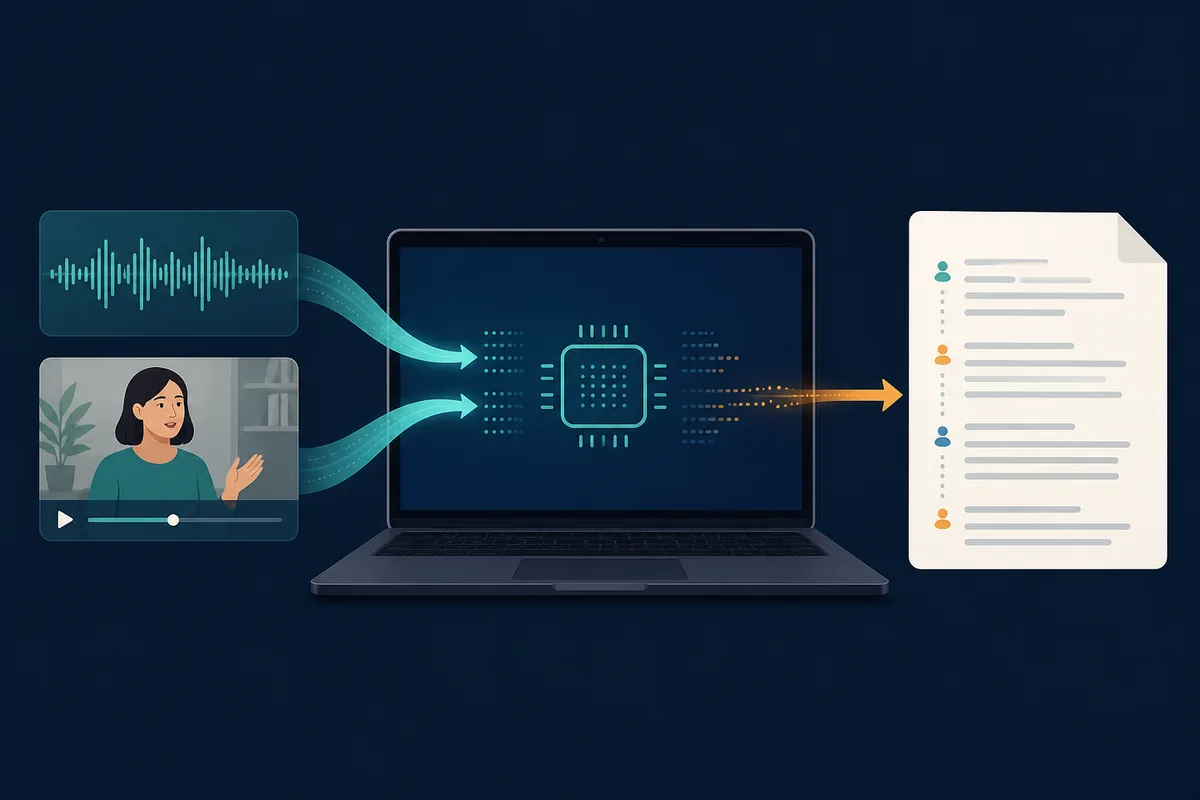
Vibe transcription starts with a local recording rather than a browser upload. The app reads the audio track or the audio contained in a video, passes speech through a local transcription model, and presents a text draft that you can review on the same computer. The practical result is not just a block of words: depending on the settings, it can include timestamps, speaker turns, and export-ready structure.
Local does not mean that every part of the product is permanently disconnected. Installing Vibe, downloading model files, checking for updates, importing a URL, or using an optional external AI integration may require network access. Treat the core transcription step, the model-download step, and optional features as separate privacy decisions.
- Core speech-to-text processing can stay on the desktop after the required model is available.
- An offline workflow still needs secure local storage, backups, and careful handling of exported text.
- Keep the original recording beside the reviewed transcript when accuracy or consent matters.
What models and settings should you use?
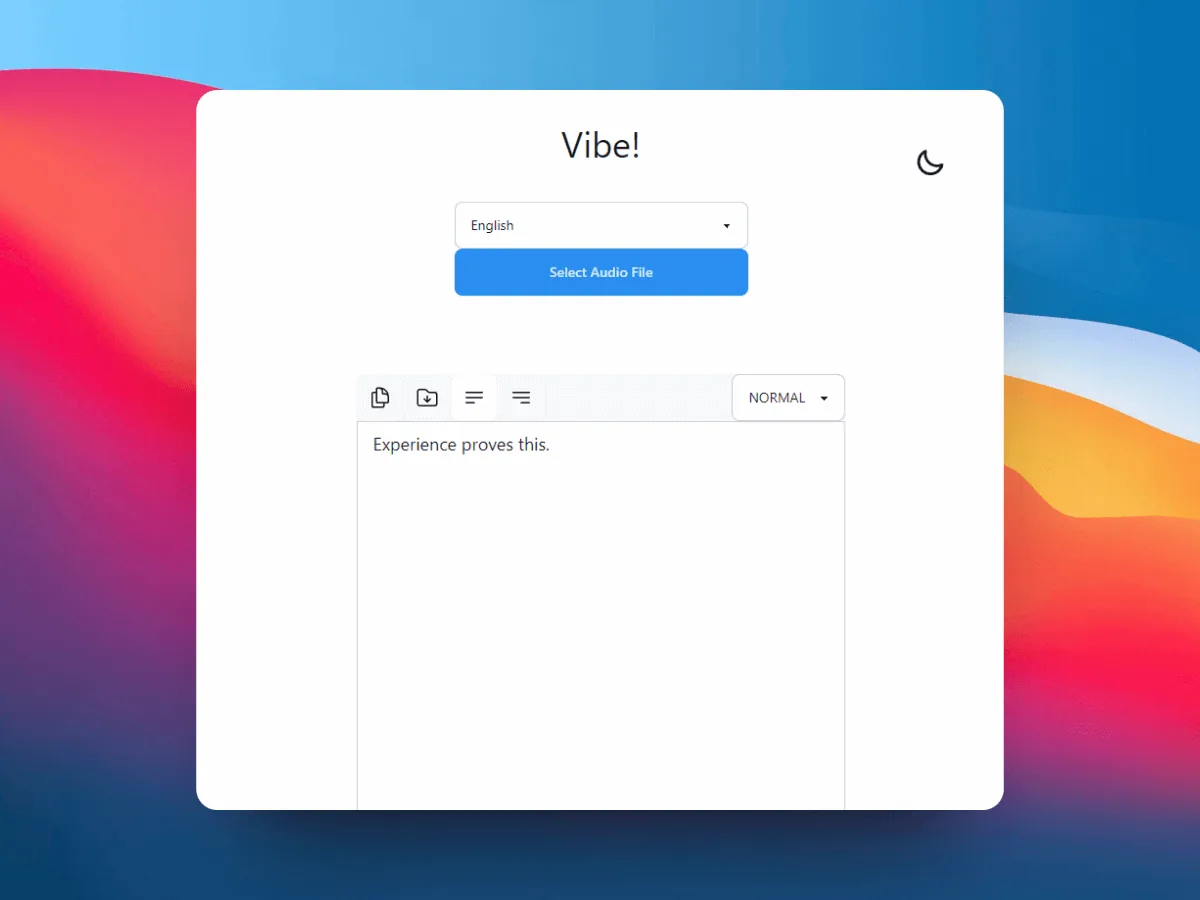
Model choice is a tradeoff between recognition quality, processing time, memory use, and the hardware available on your computer. A larger model may help with accents, noisy speech, or specialist vocabulary, but it can make a long file slower and less comfortable to process. A smaller model can be a sensible first test when you are checking whether the recording is usable.
Set the language to the language actually spoken in the recording. Do not rely on a project name or filename to choose it. For interviews, meetings, and podcasts, enable speaker diarization when speaker turns are important. For captions or quotation lookup, keep stable timestamps. Test the same settings on a representative clip before starting the complete file.
- Single speaker: start with language, model, and audio quality.
- Multiple speakers: add diarization, then rename anonymous labels only after listening.
- Subtitles: preserve timing and export SRT or VTT.
- Limited hardware: test a short clip before committing to a long model run.
What controls Vibe transcription accuracy?
Accuracy depends on the recording as much as the app. Clear speech, a nearby microphone, low background noise, limited echo, and less overlapping conversation give the model better evidence. Names, numbers, domain terms, quiet consonants, accents, and code-switching deserve a deliberate review because a fluent sentence can still contain a wrong detail.
Treat automatic output as a draft rather than a certified record. Listen again wherever the transcript contains a person name, date, amount, quotation, technical term, or uncertain speaker boundary. Check the beginning, middle, and end of a long file to see whether the same error pattern repeats. A short test can prevent hours of correction later.
- Keep the original media available during quality control.
- Do not treat anonymous speaker labels as verified identities.
- Record the Vibe version, language, model, and export choice for repeatable work.
- For regulated, legal, or sensitive work, apply the review and retention rules that govern the project.
Long videos, privacy, and optional network features
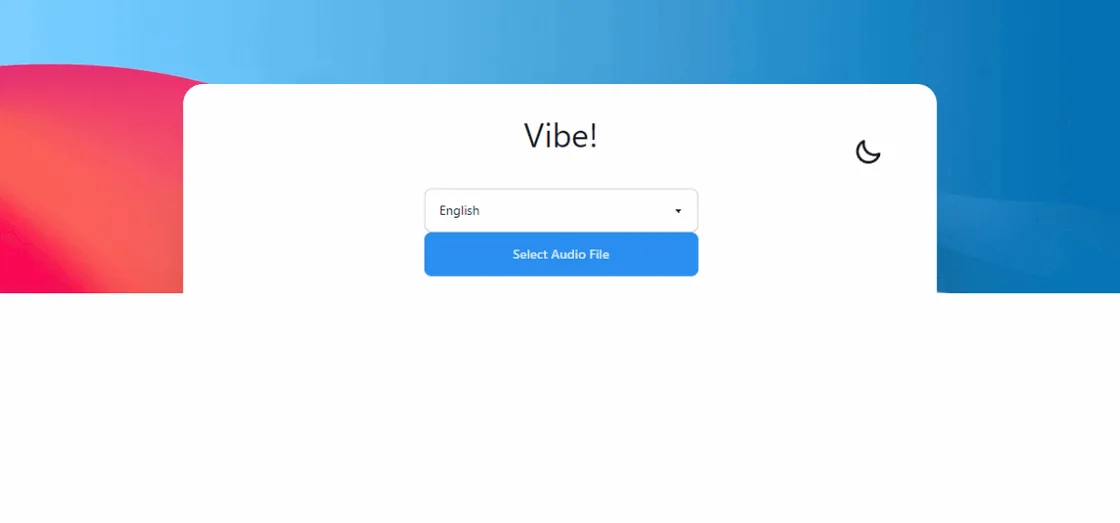
For a long video or a multi-hour recording, begin with a short representative section. Confirm the language, model, storage space, processing speed, and output quality before running the complete file. If the job is too slow or unstable, use a working copy, split only when necessary, and keep a clear relationship between each segment and the original media.
Vibe's local workflow can reduce routine uploads, but it does not remove every privacy responsibility. Protect the computer, model files, temporary folders, backups, and exported transcript. If you use a summary or analysis feature that calls an external provider, review that boundary before sending transcript text outside the local workflow.
- Preserve the original file and create a separate working copy.
- Keep enough disk space for the model, temporary work, and export.
- Separate local transcription from optional external summaries or integrations.
- Do not promise perfect privacy or accuracy when the surrounding workflow is not fully local.
Export and review the final transcript
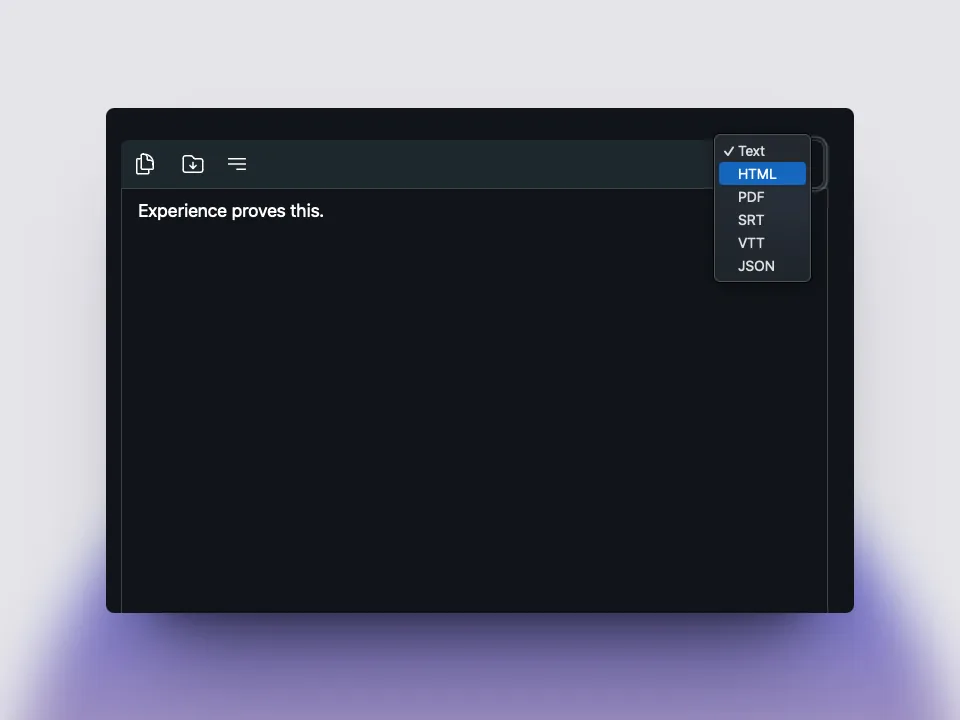
Choose the output format for the next person or tool. TXT is simple for reading and search. DOCX is convenient for editorial review. Markdown or HTML can preserve a lightweight publishing structure. SRT and VTT are for time-aligned captions, while JSON or another structured format may be better for downstream processing. If timing may matter later, keep a timed master and a clean reading copy instead of deleting evidence.
After export, open the saved file outside Vibe and verify the extension, destination, first paragraphs, speaker labels, and timestamp behavior. A success message is not a substitute for checking the actual file. Correct the transcript before publishing, and keep a note of the source media and Vibe settings when another person may need to reproduce the result.
- TXT/DOCX: clean reading, editing, and interview notes.
- Markdown/HTML: lightweight publishing or structured editorial work.
- SRT/VTT: subtitles and time-aligned captions.
- JSON: structured timestamps or downstream processing when supported.
A practical review checklist before sharing
Before sharing a Vibe transcription, keep three things together: the original recording, the exported draft, and a short note of the Vibe version, language, model, and export format. This makes it easier to explain how the text was produced and to repeat the job if a reviewer finds a problem. Give the file a clear name that identifies the source and review status, rather than treating an automatically generated filename as the final record.
Review the passages most likely to change the meaning first. Listen again to names, dates, prices, addresses, measurements, quotations, technical terms, and places where two speakers overlap. Then sample the beginning, middle, and end of a long recording. If the same word is repeatedly wrong, adjust the source audio or model settings and run a small comparison before reprocessing the entire file.
The last check is about delivery, not only spelling. Confirm that the chosen format opens correctly, timestamps remain aligned when they are required, speaker labels are not presented as verified identities, and private exports are stored where the intended readers can access them. Only after these checks should a draft become a published transcript, caption file, or research note.
- Save the original media and the reviewed export as separate files.
- Mark uncertain words instead of silently guessing when the source is unclear.
- Check names, numbers, dates, quotations, and speaker changes against the recording.
- Open the exported file in the application that will actually use it.
- Keep a short settings note when another person may need to reproduce the work.
Official sources checked
FAQ
Vibe transcription questions
How does Vibe transcription work?
Vibe opens a local audio or video file, applies the selected language and transcription model on the desktop, shows a text draft, and lets you review and export the result. Test a short section before a long recording.
What models does Vibe transcription work with?
Model availability can change by Vibe release and platform. Choose from the models exposed by the installed official build, then balance accuracy, speed, memory use, language, and recording quality instead of assuming the largest model is always best.
Is Vibe transcription completely offline?
The core transcription step can run locally after the app and required model files are available. Downloads, updates, URL import, and optional external AI features may use the network, so review each feature separately.
How do I transcribe a long video with Vibe?
Test a representative short clip, confirm language and model settings, check storage and processing time, then run the full file. Keep the original and use a clearly named working copy if you need to split or retry the job.
Is Vibe transcription free and safe?
Vibe is distributed through an open-source project with official GitHub releases. Use the official source, keep the app and operating system current, and review the local device, backup, export, and optional-network privacy boundaries yourself.
offline transcription with vibe
download vibe and start with a short local transcription test.
Download Vibe