extract transcript from MP4 offline
How to Extract Transcript from MP4 Offline
To extract transcript from MP4 offline, keep the video on your computer, open it in Vibe, choose a local transcription model, and review the result before exporting. This workflow is useful for interviews, lectures, screen recordings, and clips that should not be uploaded to a cloud converter. Vibe is an open-source desktop app, not a hosted upload service: the core transcription path can run locally, while optional summaries or integrations may use network services. Start with a short representative clip so you can check the codec, language, model, and output location before processing the complete recording.
Extract transcript from MP4 offline in a controlled workflow
A reliable offline workflow separates file preparation, local processing, quality review, and export. That makes a failed transcript easier to diagnose and keeps the original MP4 available for another model or a later edit. Use the official Vibe project and treat the first result as a draft that still needs a human check for names, numbers, speaker changes, and technical terms.
Keep the original MP4 and work from a copy when the recording matters.
Check that the audio is audible, the spoken language is known, and the file opens in a local player.
Run a short test before a long interview, lecture, or batch job.
Record the model, language, Vibe version, and export format with the transcript.
Review privacy settings separately if you use summaries or external integrations.
Quick steps
- Copy the MP4 to a local folder and note its duration, language, and speaker count.
- Open Vibe, select the local file, and choose the language and model that match your hardware.
- Transcribe a short segment first, then compare the beginning, middle, and end with the video.
- Process the complete MP4 after the test succeeds and keep the raw output separate from edits.
- Export text, SRT, or another supported format and verify the saved file before closing the project.
What offline MP4 transcription means
Offline MP4 transcription means that the source video is read from local storage and the speech-to-text model runs on your computer. The video does not need to be uploaded to a browser converter for the core step. That can be useful for private interviews, internal meetings, classroom recordings, or unfinished video projects.
Offline does not mean that every Vibe feature is automatically disconnected. The local transcription path is different from optional summaries, URL retrieval, model downloads, or other integrations that may contact an external service. If the MP4 is confidential, check those settings before starting. A clear boundary keeps the privacy claim accurate: the media can stay local for transcription, while an add-on may have its own data path.
- Local processing reduces the need to upload the original video.
- Longer or noisier MP4 files can take more time and memory.
- Optional network features should be reviewed separately.
- A human review is still needed for important names, numbers, and decisions.
Prepare the MP4 before transcription
Begin with a local copy of the MP4 and play it from start to finish in a normal media player. Confirm that the audio is present, the voices are understandable, and the spoken language is known. Note the approximate duration, number of speakers, background noise, and whether the recording contains music or screen audio. These details help you choose a realistic test clip and explain a weak result later.
If the file will not open, has a damaged index, or contains an unusual codec, repair or convert a working copy before blaming the transcription model. Keep the original untouched. A short two-minute sample with the same accents and noise as the full recording is more useful than a silent or studio-clean sample. Make sure you have enough disk space for Vibe, its model files, temporary processing, and the exported transcript.
- Keep the original MP4 and create a clearly named working copy.
- Check audio presence, language, duration, and speaker count.
- Use a representative short clip for the first test.
- Leave room for model files and exported text or subtitle files.
Run local transcription in Vibe
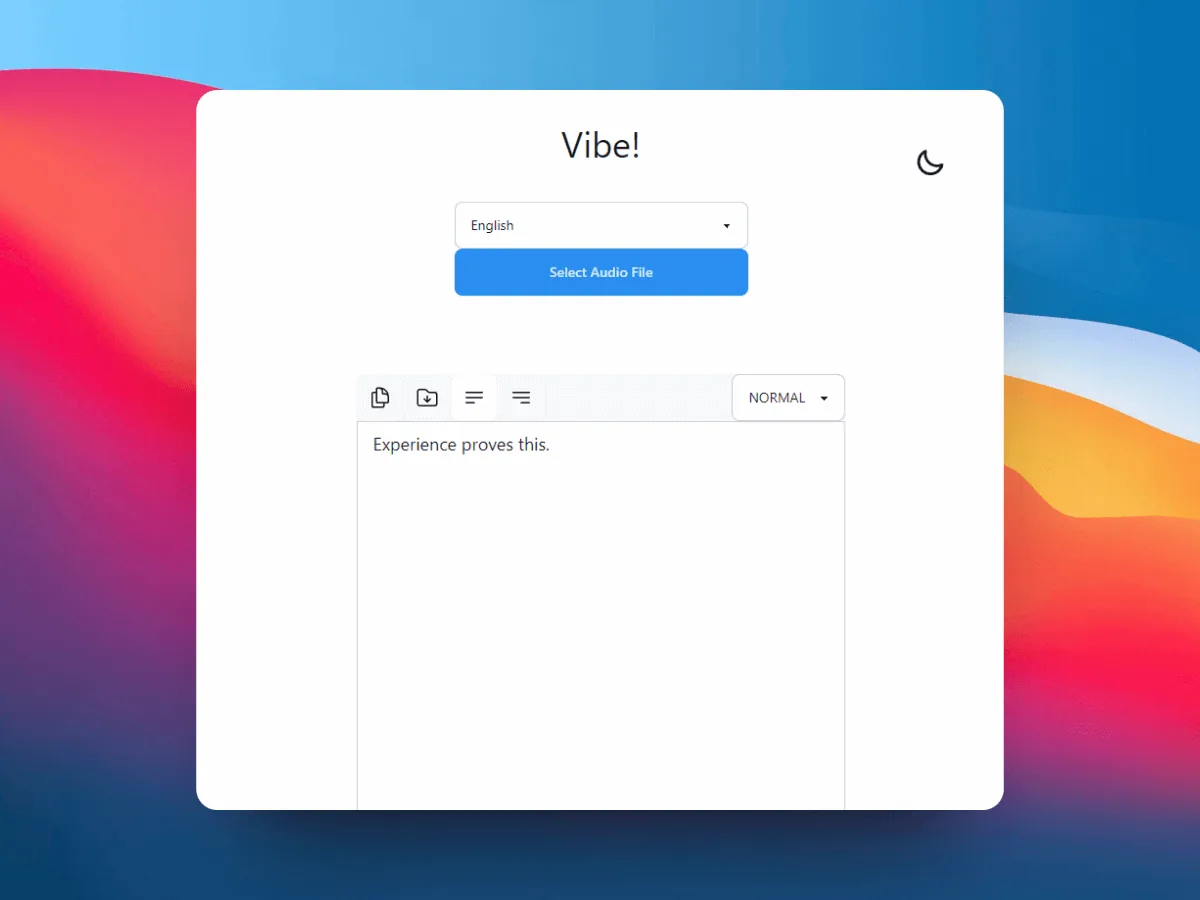
Open Vibe and select the MP4 from your local folder. Choose the spoken language instead of relying on an automatic guess when the language is known. Pick a model that your hardware can run comfortably; a larger model may improve difficult speech but can require more memory and time. Start with the short clip, watch for an actual completion, and read the first, middle, and last lines before committing to the full file.
When the sample is usable, start the complete MP4 with the same settings and keep the application open until the job finishes. Do not change the model, language, and source file all at once while troubleshooting, because you will lose the cause of the improvement. Save the raw transcript as a first-pass artifact. If the video contains several speakers, correct names and turn boundaries even when the words are mostly accurate.
- Select the file from local storage and set its known language.
- Test model size against available CPU, GPU, memory, and time.
- Compare several points in the sample before processing the whole MP4.
- Keep the first raw transcript separate from edited copy.
Fix common MP4 and model problems
A transcript can fail before the model has a chance to help. If Vibe cannot open the MP4, check the file path, permissions, container, and audio stream. Try a working copy or a standard export from your editor, and keep the exact error text. If the app opens but returns an empty or very short transcript, confirm that the correct language and audio track were selected and test a clip with clear speech.
Weak wording is often a quality problem rather than an installation problem. Background music, overlapping speakers, distant microphones, crosstalk, and uncommon names all reduce reliability. Try a different model only after the source and language are confirmed. Keep one change per test, and note the result. If the app itself is not transcribing after installation, use the troubleshooting guide; if the output exists but you cannot locate it, use the saved-transcript guide.
- MP4 will not open: verify path, permissions, container, and audio stream.
- Empty result: confirm language, audio track, and a short clear sample.
- Poor accuracy: check noise, overlap, model size, and unusual vocabulary.
- Keep exact errors and one change per troubleshooting test.
Review and export the transcript
Treat the first transcript as searchable working text, not a finished record. Compare names, dates, numbers, quotations, and technical words against the MP4. For interviews, check who is speaking at each important turn. For a lecture or screen recording, verify headings, commands, and references. Mark uncertain passages rather than silently guessing; a short note beside the timestamp makes later editing faster.
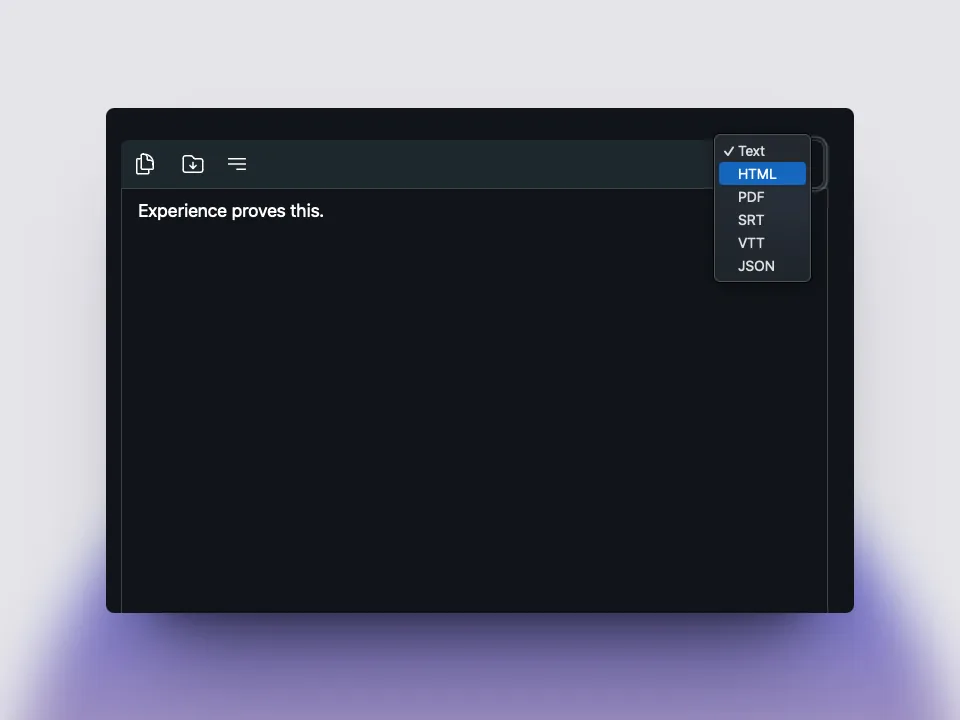
Export the format that matches the next task. Plain text is convenient for notes and search, while SRT or another timed format is better for subtitles and video editing. Keep the raw export, the corrected version, and the original MP4 under clear names. Vibe saves and export choices can vary by workflow, so verify the destination and open the exported file before deleting temporary data.
- Proofread names, numbers, timestamps, and speaker changes.
- Choose plain text for notes or a timed format for subtitles.
- Keep raw and edited files as separate versions.
- Open the exported file and confirm its destination before cleanup.
Choose offline, cloud, or a hybrid workflow
Offline processing is a strong fit when the original video should remain on a controlled computer, when you need repeatable local work, or when an internet connection is unreliable. It may require more setup, storage, and patience than a browser service. A cloud tool can be faster to try, but it changes where the media is processed and may have account, retention, or cost conditions. Decide from the sensitivity and repeatability of the project rather than from a single accuracy claim.
A hybrid workflow can keep the first transcript local and use another service only for a non-sensitive excerpt or a later editing task. Document what was uploaded, which model created each version, and where the final file is stored. For a private full-length MP4, keep the local path as the source of truth and link the saved-transcript and subtitle guides when you need the next step.
- Use local processing when upload exposure is the main concern.
- Use cloud processing only after checking retention and account terms.
- A hybrid path should document which excerpt left the computer.
- Keep the original MP4 and the final reviewed transcript together.
FAQ
Extract transcript from MP4 offline questions
Can I extract transcript from MP4 offline without uploading the video?
Yes. With Vibe, the core transcription path can read a local MP4 and run the model on your computer. Review optional summaries, integrations, and model downloads separately because they may use network services.
What should I do if Vibe cannot open my MP4?
Play the file locally, check that it has an audio stream, and test a working copy or a standard export from your editor. Keep the original and the exact error text so you can distinguish a codec problem from a model problem.
Which model should I use for an offline MP4 transcript?
Choose a model that fits your language and hardware, then test it on a short representative clip. Larger models can take more memory and time; compare the beginning, middle, and end before processing the full recording.
Is an offline transcript automatically accurate?
No. Noise, overlapping speakers, accents, music, names, and technical vocabulary can create errors. Review important passages against the video and keep the raw transcript separate from your corrections.
Where does Vibe save the transcript after processing?
The destination depends on the export action and your workflow. Verify the save dialog and open the exported file; use the saved-transcript guide when you cannot find the output.
Can I turn an offline MP4 transcript into subtitles?
Yes, when the transcript includes usable timing and Vibe offers a subtitle-compatible export for your installed version. Check the SRT or other timed file in your editor and correct line breaks and timing before publishing.
offline transcription with vibe
download vibe and start with a short local transcription test.
Download Vibe