how to install Vibe
How to Install Vibe on Windows, macOS, and Linux
This Vibe installation guide shows the complete path from the official v3.2.2 GitHub release to a short, verified local transcription test. Choose the package for your operating system, compare the file name and size, follow the platform steps, and keep the first job small enough to troubleshoot. Vibe is an unofficially documented open-source desktop app here, so the final download source remains the official thewh1teagle/vibe release.
Install Vibe without guessing
The safest installation is a short chain of decisions: identify your operating system and CPU family, open the official release, select the matching package, confirm the version and file name, then test a representative audio or video clip. The app's core transcription can run locally, but optional integrations may use external services. Keeping those boundaries visible helps you install Vibe confidently without confusing a successful download with a verified transcription workflow.
Use the official GitHub v3.2.2 release rather than a repackaged mirror.
Choose Windows x64, Apple Silicon or Intel macOS, or the matching Linux package.
Test a short file before processing a long interview, lecture, or batch.
Keep the release version and source file name with the transcript for repeatable work.
Quick installation path
- Open the official Vibe release and check the v3.2.2 tag and platform asset.
- Download the package that matches your operating system and processor family.
- Install or open Vibe, approving only the operating-system permissions your workflow needs.
- Run a short local transcription and inspect language, model, timestamps, and output.
- Only then move to longer files, subtitles, meetings, or batch transcription.
Verified Vibe v3.2.2 packages
These are the non-signature assets checked against the official GitHub release on September 19, 2026. Sizes are rounded from the release metadata; use the official release page if an asset changes.
| Platform | Choose | Release file | Approx. size |
|---|---|---|---|
| Windows x64 | Windows setup | vibe_3.2.2_x64-setup.exe | 45.5 MB |
| macOS Apple Silicon | M-series Mac | vibe_3.2.2_aarch64.dmg | 43.0 MB |
| macOS Intel | Intel Mac | vibe_3.2.2_x64.dmg | 41.4 MB |
| Linux DEB x64 | Debian/Ubuntu family | vibe_3.2.2_amd64.deb | 40.7 MB |
| Linux RPM x86_64 | Fedora/RHEL family | vibe-3.2.2-1.x86_64.rpm | 40.7 MB |
The direct buttons on this site point to GitHub release assets. This site does not host, modify, or re-sign the installers.
Before you install Vibe
Start with the source, not a search-result mirror. The official Vibe repository is thewh1teagle/vibe, and the verified release for this guide is v3.2.2, published on September 5, 2026. The release page is the authority for changed file names, new package formats, and release notes. A download page can help you choose a file, but it should not hide the source or imply that an unofficial copy is safer.
Have a short representative recording ready before you install Vibe. A two-minute clip with the language, accents, background noise, and speaker count you normally handle is more useful than testing only a perfect sample. You will use it to confirm that Vibe opens, the model can run on your computer, the language is correct, and the output is saved where you expect.
- Check available disk space for the app and any model files.
- Keep the original media file; do not use the first transcript as a replacement.
- If the recording is confidential, review optional cloud or API features separately from local transcription.
Choose the correct Vibe package
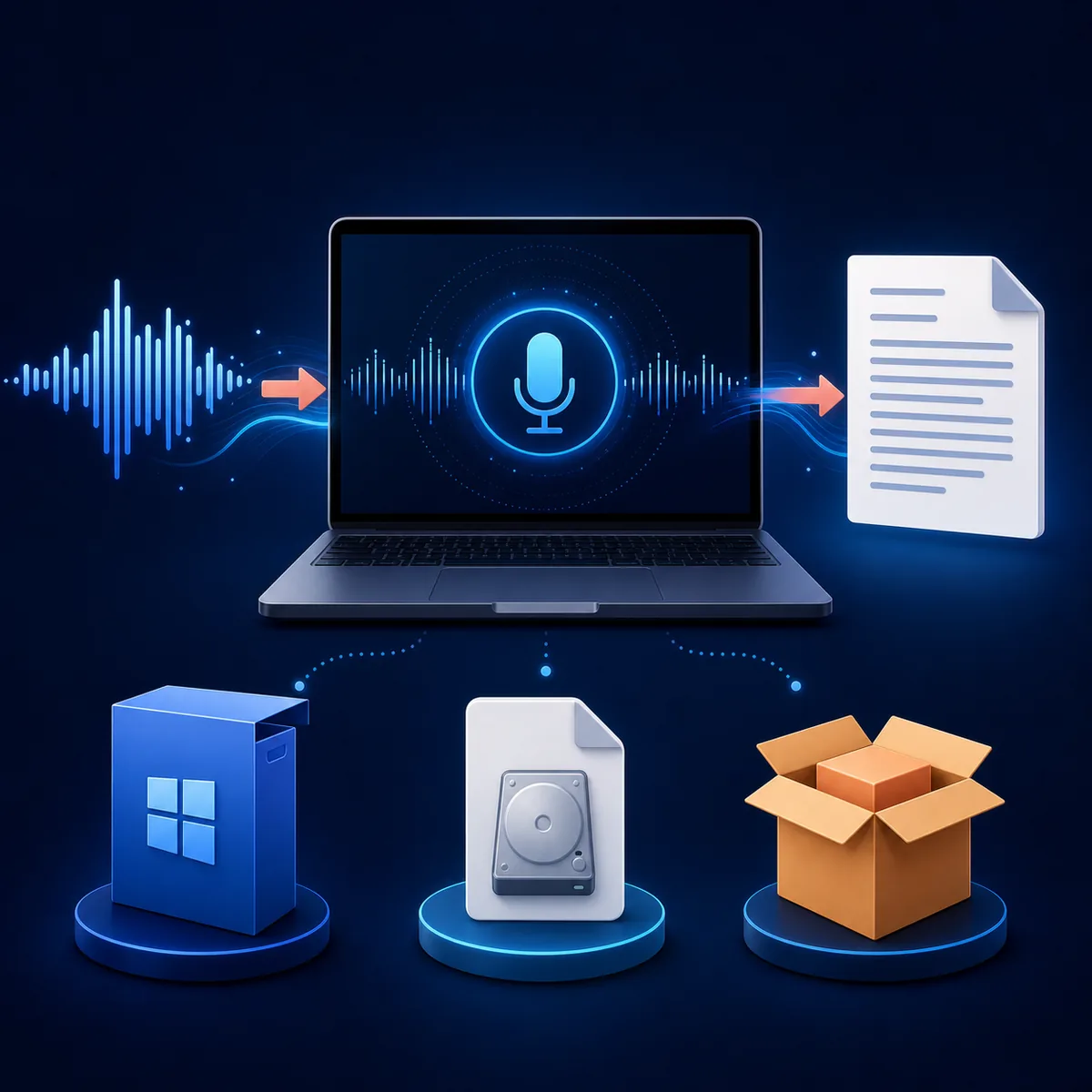
Windows users should choose the x64 setup file shown in the table. On macOS, the aarch64 DMG is for Apple Silicon Macs with M-series chips, while the x64 DMG is for Intel Macs. On Linux, DEB is the natural choice for Debian and Ubuntu-style systems, while RPM fits Fedora, RHEL, and related distributions. Do not choose a package only because its name contains a familiar operating system; match the architecture as well.
Before opening the file, compare the visible name with the v3.2.2 release page and keep the official GitHub URL in your notes. The signature files are published beside some assets, but this guide does not claim a cryptographic verification that has not been performed locally. If GitHub shows a newer release later, repeat the same check instead of treating v3.2.2 as permanently current.
- Windows: vibe_3.2.2_x64-setup.exe.
- macOS: aarch64 for Apple Silicon; x64 for Intel.
- Linux: amd64 DEB or x86_64 RPM, depending on the distribution.
Windows installation
Download the Windows x64 setup file from the official release, then open it from the folder where you saved it. Follow the installer prompts and avoid adding unrelated software or extensions. If Windows SmartScreen displays a warning, pause and compare the file name, version tag, and download origin with GitHub. A warning is not a reason to use a third-party mirror, and clicking through without checking the source is not a verification step.
After Vibe opens, begin with the short test clip. Select the spoken language and a suitable model, start transcription, and inspect the text for names, numbers, timestamps, and obvious missing sections. Windows microphone or system-audio workflows may need permissions beyond a simple file import, so grant access only when the feature is part of your intended workflow.
- Keep the installer file name and release URL until the first test passes.
- Use a local audio or video file before testing microphone or system audio capture.
- If the app opens but transcription fails, use the troubleshooting guide rather than reinstalling repeatedly.
macOS installation
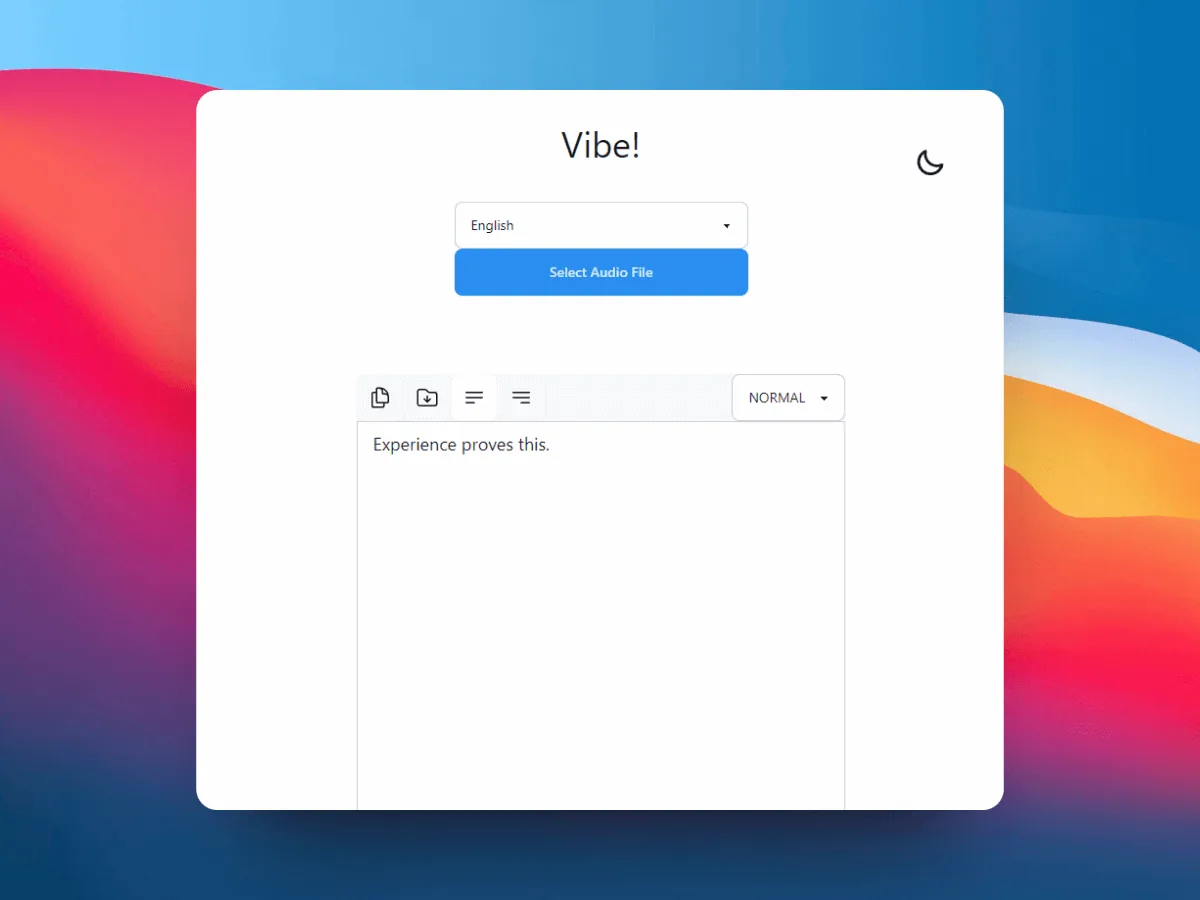
First identify whether the Mac uses Apple Silicon or Intel. Open the matching DMG from the v3.2.2 release, move Vibe to Applications when the package presents that option, and open the installed app from there. macOS may ask you to confirm that an application downloaded from the internet can run. Check that the DMG name and GitHub source match before approving the prompt.
Vibe may request access to files, the microphone, or other system resources depending on the task. Permission prompts should match the workflow you are actually starting. For a file transcription test, begin with the media file and add microphone access later only if you need live capture. If the Mac architecture and package do not match, download the other official DMG instead of forcing the installer.
- Apple Silicon: choose vibe_3.2.2_aarch64.dmg.
- Intel: choose vibe_3.2.2_x64.dmg.
- Keep Vibe in Applications and test a local file before enabling live input.
Linux installation
Choose the package format that belongs to your distribution rather than downloading both. Debian and Ubuntu users commonly start with the amd64 DEB; Fedora and RHEL users commonly start with the x86_64 RPM. Download the official asset, install it with the package manager or desktop software tool your distribution provides, and read dependency messages instead of hiding them. The package is a release artifact, not a universal command that behaves identically on every Linux desktop.
After installation, launch Vibe and run the short test file before beginning a batch. If the application starts but a model or library is unavailable, record the distribution, architecture, release file, and exact error text. That information is more useful for troubleshooting than a vague reinstall. Users who specifically search for installing Vibe from GitHub in Linux Mint should follow the DEB path and still verify the current release asset first.
- DEB: vibe_3.2.2_amd64.deb for compatible x86_64 Debian-family systems.
- RPM: vibe-3.2.2-1.x86_64.rpm for compatible x86_64 RPM-family systems.
- Review dependency prompts and keep the terminal output if a package step fails.
First launch and privacy checks
Installation is complete only after the first controlled transcription works. Import the short file, choose its actual language, select the model available to your hardware, and let the job finish. Compare the beginning, middle, and end of the output with the audio. If the result is usable, save it and note the Vibe version, model, language, and export format. This creates a reproducible baseline before you process a long meeting, podcast, or video archive.
The core local transcription path is different from optional AI summaries, URL retrieval, or other integrations that may call external services. Read the feature settings before using confidential recordings, and keep raw media beside the reviewed transcript when the work matters. If you cannot find the output, check the save dialog and the file-location guide; do not assume every export is stored in Downloads.
- Review names, figures, technical terms, timestamps, and speaker labels.
- Keep raw and edited transcript copies separate.
- Document the Vibe version and settings when the workflow must be repeated.
Common installation problems
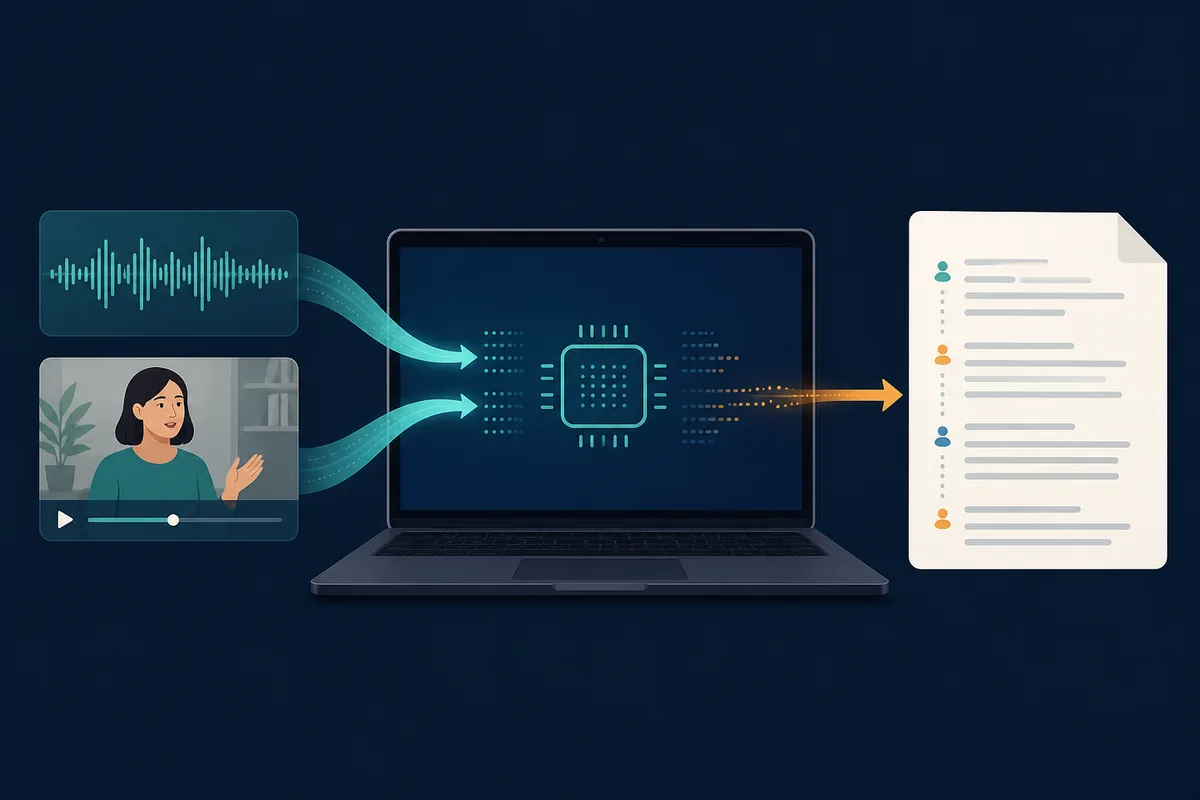
A blocked installer, missing dependency, or failed first transcript does not always mean the release is broken. Start by checking the operating system, architecture, exact package name, and official version tag. Then retry with a short local file and the simplest available settings. Avoid changing several variables at once; if you change the model, language, input file, and permissions simultaneously, you will not know which change solved the problem.
For Windows SmartScreen, compare the source and file name before deciding what to do. For macOS, confirm the package architecture and review the security prompt. For Linux, keep the package-manager output and check distribution compatibility. For a transcription error after a successful install, use the dedicated troubleshooting page, and for a missing output file, use the saved-transcript guide.
- Installer will not open: re-check the package, architecture, and official release source.
- App opens but no transcript appears: test a short supported file and confirm language/model settings.
- Output is missing: check the chosen save destination and exact filename.
- Results are weak: review audio quality, model choice, language, and speaker overlap before reinstalling.
FAQ
Vibe installation questions
Which Vibe version should I install?
This guide verified v3.2.2 from the official GitHub release on September 19, 2026. Check the official release page again when you install later because a newer tag may replace it.
Where should I download Vibe?
Use the official thewh1teagle/vibe GitHub release or the platform links on this site, which point to the official release assets. This site does not host modified installers.
Which Vibe file is right for my Mac?
Use the aarch64 DMG for Apple Silicon M-series Macs and the x64 DMG for Intel Macs. Check About This Mac if you are unsure which processor family you have.
How do I install Vibe on Linux Mint?
Start with the official x86_64 DEB when your Linux Mint installation is compatible with the Debian/Ubuntu package family. Confirm the current release file and keep dependency output if installation fails.
Is Vibe completely offline after installation?
The core transcription workflow can run locally, but optional summaries, URL retrieval, or external integrations may use network services. Review those settings separately before processing confidential files.
What should I test after installing Vibe?
Run a short representative audio or video file, confirm the language and model, review the first, middle, and last sections, and verify the saved output before starting a long or batch job.
offline transcription with vibe
download vibe and start with a short local transcription test.
Download Vibe