vibe microphone transcription
Vibe Microphone Transcription
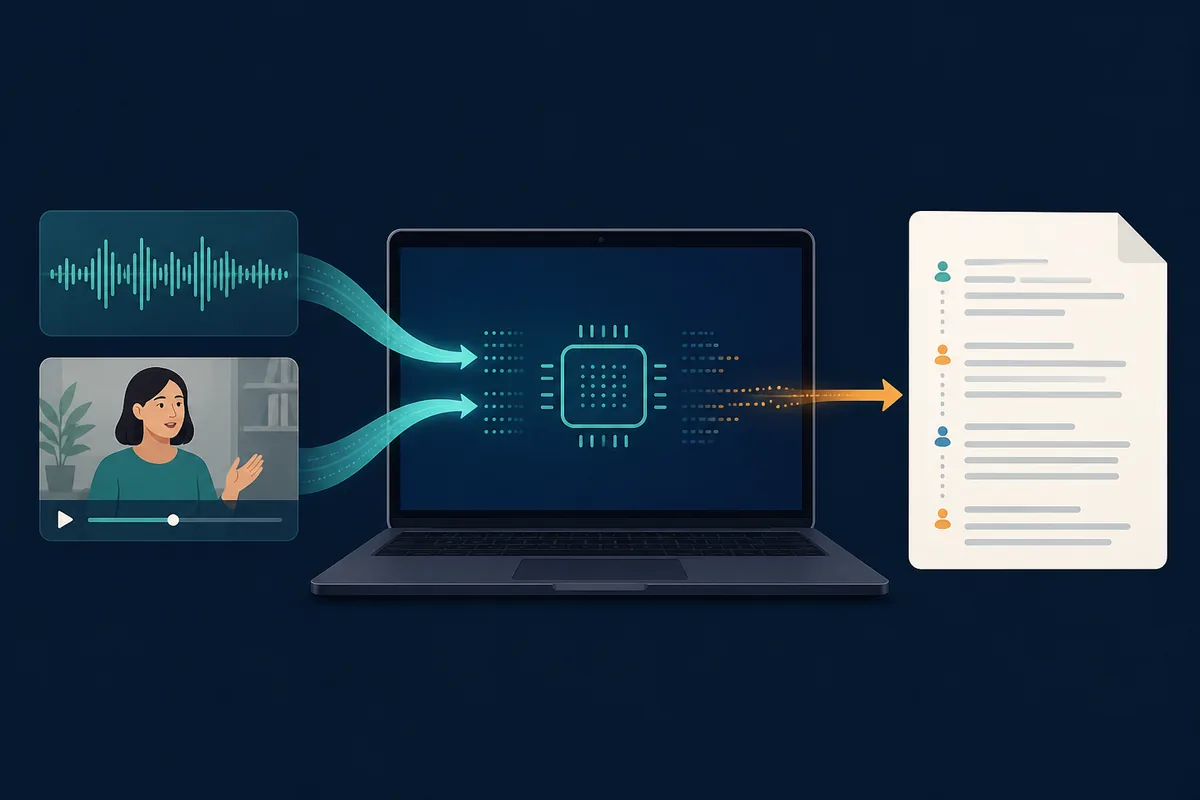
Vibe microphone transcription is the live-recording path inside the Vibe desktop app. Choose a microphone, record a short sample, watch the local transcript preview, and export the result after checking names and timestamps. The official release checked for this guide is v3.3.0, published October 29, 2026; download the current package from the official GitHub release before testing.
How Vibe microphone transcription works
The microphone workflow combines capture, local speech recognition, a readable preview, and an export decision. It is different from uploading a finished MP3 or WAV file: the quality of the live signal and the operating system permission state matter before the first sentence is transcribed.
Record from a selected microphone instead of preparing a file first.
Keep the core transcription on your computer with Whisper or another available model.
Use a short test to check permissions, language, noise, and model speed.
Review the live draft before copying or exporting a transcript.
Treat optional summaries or translation as separate features with separate privacy boundaries.
A reliable live recording workflow
- Install the verified release, open Vibe, and allow microphone access only when the operating system asks for it.
- Open the microphone recording view, choose the intended input, and check whether you want to keep the source audio.
- Record two or three minutes, confirm that the preview follows the speaker, and stop the test before starting a long session.
- Choose the language, model, timestamps, and speaker options that match the recording rather than leaving every advanced option on.
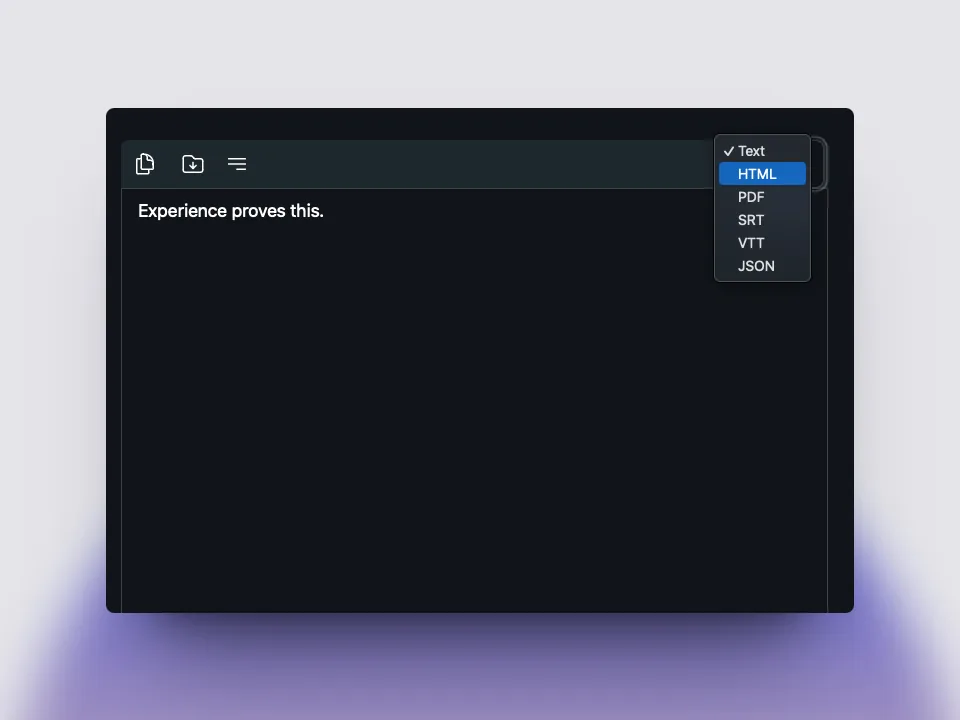
- Correct the draft, choose an output format, and save it to a known project folder before closing the result.
Choose the Vibe input that matches the job
Microphone recording is one of several Vibe paths. The input determines what you should test and what privacy checks matter first.
| Workflow | Input | Best fit | First check |
|---|---|---|---|
| Microphone transcription | Live microphone | Interviews, notes, room conversations | Permission and input level |
| File transcription | MP3, WAV, MP4, or another saved file | Existing recordings and batch work | File access and language |
| System audio transcription | Computer playback or calls | Webinars, meetings, demonstrations | Correct system source and consent |
| Speaker diarization | Multi-speaker recording | Readable turn-by-turn review | Overlap and label accuracy |
The table is a planning aid. Confirm the controls and behavior in the current release, then review the generated transcript against the audio.
Prepare the microphone before recording
Live transcription starts with the signal, not the transcript box. Put the microphone close enough for a consistent voice level, mute notification sounds, and use headphones when system playback could leak into the recording. If several people will speak, place the microphone where voices arrive at a similar volume. A quiet two-minute test reveals more than a long recording made with the wrong input.
Open the operating system sound settings and confirm the device name before opening the Vibe recording view. Select the same device in Vibe, then speak a short sentence and watch the preview. If no text appears, stop and fix permission, device selection, or exclusive-use conflicts before continuing. Keep the original audio when the session is important; it lets you check a disputed word later.
The official Vibe README describes microphone recording, system-audio transcription, offline processing, several export formats, and GPU support across macOS, Windows, and Linux. Those capabilities describe the product, not a guarantee that every computer will behave identically. Driver permissions, model downloads, language settings, room noise, and available CPU or GPU resources can change the experience.
For a confidential meeting or interview, decide what should happen to the captured audio before pressing Record. A local transcript can stay on the device, but a user-selected summary or translation integration may send data to another service. Use the simplest local path first, save to a known folder, and document the Vibe version and model so the result can be reproduced.
- Check the selected input and the operating system permission prompt.
- Run a short sample before a long or sensitive recording.
- Keep headphones and notification controls in the recording plan.
- Save the original audio when a later review may matter.
- Record the version, language, model, and export format.
Sources and release context
Why vibe microphone transcription matters
vibe microphone transcription stays useful when official source is handled as part of a real Vibe workflow. The page explains the official GitHub source, the local desktop app, Whisper transcription, audio and video files, subtitles, privacy, and review. Users should treat vibe microphone transcription as a practical checklist: choose the right package, test a short recording, inspect the transcript, correct names and timestamps, and keep the Vibe version with the exported text. That repeatable process makes vibe microphone transcription more trustworthy than a generic software directory page.
How to use vibe microphone transcription
vibe microphone transcription stays useful when video transcription is handled as part of a real Vibe workflow. The page explains the official GitHub source, the local desktop app, Whisper transcription, audio and video files, subtitles, privacy, and review. Users should treat vibe microphone transcription as a practical checklist: choose the right package, test a short recording, inspect the transcript, correct names and timestamps, and keep the Vibe version with the exported text. That repeatable process makes vibe microphone transcription more trustworthy than a generic software directory page.
Privacy and accuracy for vibe microphone transcription
vibe microphone transcription stays useful when batch jobs is handled as part of a real Vibe workflow. The page explains the official GitHub source, the local desktop app, Whisper transcription, audio and video files, subtitles, privacy, and review. Users should treat vibe microphone transcription as a practical checklist: choose the right package, test a short recording, inspect the transcript, correct names and timestamps, and keep the Vibe version with the exported text. That repeatable process makes vibe microphone transcription more trustworthy than a generic software directory page.
Next steps after vibe microphone transcription
vibe microphone transcription stays useful when review workflow is handled as part of a real Vibe workflow. The page explains the official GitHub source, the local desktop app, Whisper transcription, audio and video files, subtitles, privacy, and review. Users should treat vibe microphone transcription as a practical checklist: choose the right package, test a short recording, inspect the transcript, correct names and timestamps, and keep the Vibe version with the exported text. That repeatable process makes vibe microphone transcription more trustworthy than a generic software directory page.
FAQ
vibe transcribe faq
vibe transcribe faq vibe microphone transcription?
vibe microphone transcription should be checked against the official Vibe GitHub release, tested with a short file, and reviewed before sensitive work.
Is vibe microphone transcription local?
vibe microphone transcription focuses on Vibe local transcription, while optional summaries or integrations should be reviewed separately.
Who should use vibe microphone transcription?
vibe microphone transcription is useful for audio, video, subtitles, meeting notes, batch jobs, and privacy-conscious desktop transcription.
How to improve vibe microphone transcription?
Improve vibe microphone transcription with clear audio, correct language, a suitable model, and manual review of names, timestamps, and speaker labels.
FAQ
Vibe microphone transcription questions
Can Vibe transcribe directly from a microphone?
The official README lists microphone transcription. Choose the microphone recording view, select an input, run a short test, and verify the preview before a longer session.
Does microphone transcription upload my recording?
The core Vibe transcription workflow is designed for local processing. Treat optional summaries, translation, or other integrations as separate services and review their settings before using sensitive audio.
What should I do when the microphone produces no text?
Check operating system permission, the selected device, the input level, the language and model, and whether another application has exclusive access. Re-run a short test after each change.
offline transcription with vibe
download vibe and start with a short local transcription test.
Download Vibe